


Screen Recorder - Vidma Record
4.515.75K Reviews
App Specs
- Version
- 3.7.44
- Updated On
- License
- Free
- Downloads
- 50,000,000+
- Developer
- Vidma Video Studio
- Categories
- Video Players & Editors
- Platform
- Android, iOS
Screenshots
 Analysis by AppCompare
I’d start with Screen Recorder - Vidma Record if I wanted a straightforward way to capture something happening on my phone without first learning a complicated editing suite. It is a screen-recording app from Vidma Video Studio, in the video players and editors category, and its basic appeal is easy to understand: get a recording started, then make simple adjustments before sharing it. For a first-time user, that short path from opening the app to making a useful clip matters more than a long feature list.
Getting Started with Vidma Record
The first thing you'll notice when you open Screen Recorder - Vidma Record is its user-friendly interface. It’s like the app is saying, “Hey, don’t worry, I’ve got your back!” Navigating through the app is a breeze, and even if you're not the most tech-savvy person around, you'll find it easy to start recording your screen in no time.
Once you have the app installed, you’ll be greeted with a straightforward home screen. A big red button right in the center is all you need to hit to start recording. There are also some additional features tucked away that you can access with a swipe or two.
Before You Press Record
I’d take a moment to decide what the finished clip needs to do. A quick screen capture for a relative who needs help with a phone setting is different from a gameplay clip you plan to edit and share. Knowing the purpose first helps you avoid recording a long, messy take and then trying to rescue it afterward.
For a first attempt, I’d choose one small task and record only that: open the relevant screen, show the steps at a steady pace, and stop when the explanation is complete. That simple workflow makes it easier to judge whether the result is readable and whether the recording controls feel comfortable. It also gives you a practical answer to the most important first-time question: can I capture the thing I actually need, without getting lost in menus?
Exploring the Features
Vidma Record isn't just about recording your screen. It's about enhancing your entire screen-recording experience. Let me walk you through some of the features that caught my eye.
- No Watermark: Unlike many other free apps, Vidma Record doesn’t slap an annoying watermark on your videos. That’s a huge plus for anyone who wants to share their recordings without any extra branding.
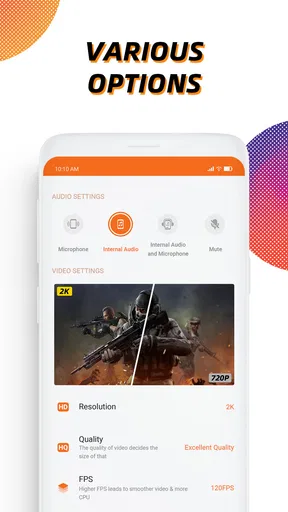
- High-Quality Recording: You can record in HD, ensuring that every detail is crystal clear. Whether you’re capturing gameplay, tutorials, or video calls, the quality doesn’t disappoint.
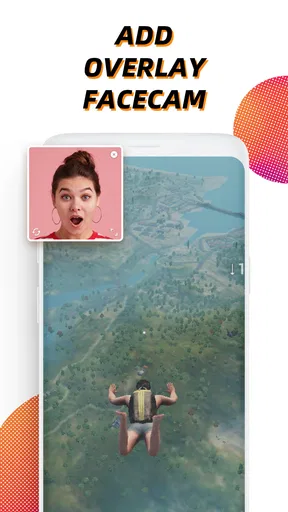
- Facecam Integration: This is a neat feature for gamers and vloggers. You can record your screen while also capturing your reactions through the front camera.
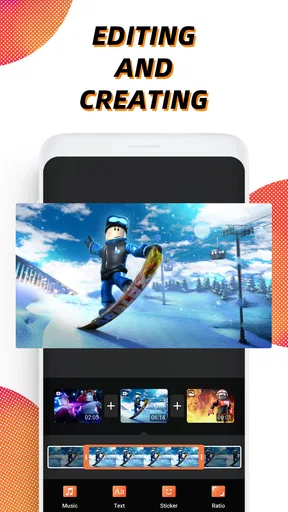
- Built-in Video Editor: Vidma Record comes with a basic video editor. It’s nothing too fancy, but you can trim, cut, and add music to your videos directly within the app.
The editor is most useful when you treat it as a cleanup step, not a full production studio. I’d trim dead time at the beginning and end, then add music only when it helps the clip rather than competes with spoken instructions or important game audio. Keeping the edit modest usually makes a screen capture easier to follow, especially when the viewer is watching on a phone.
Worth Reading Before You Choose

EA SPORTS FC Mobile 26 Is a Bigger Football Game, but It Takes Time

Flipboard Shows What News Apps Must Do Beyond the Feed

Switching to Android Auto Means Rethinking Your Driving Routine

Google Calendar Makes a Crowded Week Easier to Manage

Ludo King Makes the Most of the Minutes Between Plans

Baby Panda World Brings Quick Play to Modern Phones, but Its Game Library Feels Busy
Making the First Recording Useful
A realistic first project is showing someone how to change a setting. Before recording, I’d locate the exact screen and decide which taps need explaining. During the take, I’d pause briefly before each important action, so the viewer has time to see where I’m going. Afterward, I’d use the editor to remove the opening where I’m getting ready and the ending where I reach for the controls.
That approach also helps with gameplay clips. Rather than recording a long session and hoping an interesting moment appears, I’d start with a specific goal, such as capturing one level attempt or demonstrating a particular move. The trade-off is that a planned clip may feel less spontaneous, but it is much easier to find, trim, and share than an oversized recording with no clear point.
Performance and Usability
Performance-wise, Vidma Record is pretty solid. During my time using it, I didn’t encounter any crashes or lag, which is always a relief. The recordings were smooth, and the app seemed to handle longer sessions without a hitch. It’s also worth mentioning that the app doesn’t seem to drain the battery excessively, which is often a concern with screen recorders.
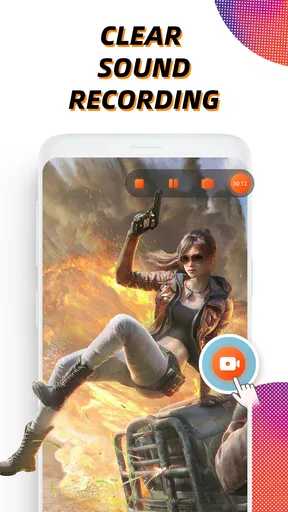
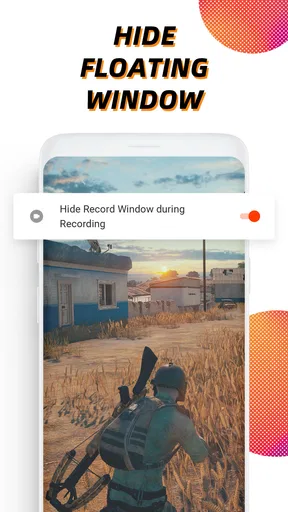
Usability is where Vidma Record really shines. The app is intuitive and doesn’t overwhelm you with too many options or settings. It’s designed to do one thing and do it well. The floating control panel is a nice touch, allowing you to start, pause, and stop recordings without having to jump back into the app.
Small Habits That Improve a Capture
The floating controls are convenient, but they also make it worth planning where you’ll tap and how you’ll move through a demonstration. I’d keep the sequence deliberate and avoid rushing between screens; a recording can be technically smooth yet still hard to understand if the important action flashes past. For a tutorial, narration or short pauses can make the difference between a clip that merely shows a screen and one that actually teaches a step.
For longer captures, I’d also think about storage and battery before starting, rather than discovering a problem halfway through. Screen recording creates a video file, so a brief test gives you a feel for how much space your own recording style uses. I would not assume that every session should be recorded at the highest available quality: for a quick private explanation, a smaller, easier-to-share file may be more practical than preserving every detail.
Where It Fits Among Alternatives
Android already offers built-in screen recording on many devices, and that can be the better choice if all you need is a quick, occasional capture with no editing afterward. Vidma Record makes more sense when you want a dedicated recording flow and the convenience of trimming a clip or adding music in the same app. Compared with desktop editing software, its appeal is speed and simplicity, not precise control over a polished production.
That distinction matters if you are making lessons for work or publishing videos regularly. A basic mobile editor can tidy a recording, but it is not a substitute for a full editing workflow when you need detailed sound balancing, multiple layers, or careful visual finishing. I’d choose this app for practical phone captures and lightweight sharing, and use a more capable editor when the final video needs a professional level of control.
Who Should Try It—and Who May Prefer Something Else
I can see it suiting someone who wants to explain a phone task to family, save a short gameplay moment, or make a simple tutorial without moving the file to a computer just to cut off a few seconds. Facecam can also be useful when a creator wants their reaction visible alongside what is happening on screen. The strongest reason to try it is the combination of a direct recording flow and basic editing in one place.
I’d steer away from it if your priority is elaborate post-production or if you only need a one-off capture and your phone’s built-in recorder already does everything you want. It may also be a poor fit for someone who expects every recording to be ready for publication without reviewing it. A quick playback before sharing is still sensible: check that the important action is visible, the clip ends cleanly, and any music does not drown out the explanation.
Common Questions Before Sharing
A natural question is whether the app costs anything to try. It is free to download, though it also offers in-app purchases ranging from $6.99 to $199.99 per item. I’d start with the free experience and consider a purchase only if I understand what it adds and know I’ll use it; those listed prices cover a broad range, so checking the specific item in the app is more useful than assuming there is one standard upgrade.
Another practical question is whether it suits a younger user. Its content rating is Everyone, but I’d still treat recordings thoughtfully: screen captures can show personal messages or account details if you navigate through them while recording. Before sending a clip, I’d watch it from beginning to end and make sure it contains only what I intended to show.
The app has an average rating of 4.5 from around 890,000 ratings, with about 16,000 written reviews, and it has been installed over 50 million times. It was released on October 23, 2020, and version 3.7.44 is listed as the current version. It supports Android 6.0 and later. Those details suggest a widely used option, but they don’t guarantee that every feature behaves identically on every device, so I’d make a short test recording before relying on it for an important explanation.
What Sets Vidma Record Apart?
Aside from the features I've mentioned, what really sets Vidma Record apart is its community-focused approach. It's clear that the developers are listening to user feedback and continually updating the app to meet users' needs. Regular updates mean that bugs get fixed quickly, and new features are added to enhance the user experience.
Also, I love that the app offers a tutorial for new users. It’s like having a friendly guide walking you through your first few recordings. For anyone new to screen recording, this can be incredibly helpful.
Wrapping It Up
So, is Screen Recorder - Vidma Record worth your time? In my opinion, absolutely. Whether you're a gamer, a tutor, or just someone who wants to share what’s happening on your screen, Vidma Record provides a reliable, high-quality solution. With its user-friendly interface, excellent performance, and thoughtful features, it’s an app that’s hard to beat in the screen recording arena.
So go ahead, give it a try, and see how it fits into your digital toolbox. I've found it to be a game-changer in the way I capture and share screen content, and I think you might too!
Pros
- User-friendly interface for beginners.
- High-quality video output with no lag.
- Supports recording in various resolutions.
- Includes basic editing tools for convenience.
- No watermark on recorded videos.
Cons
- Limited features in the free version.
- Occasional ads can interrupt workflow.
- Some features require in-app purchases.
- Not available on older device models.
- No direct integration with cloud storage.
FAQs for Screen Recorder - Vidma Record
What features does Screen Recorder - Vidma Record offer?
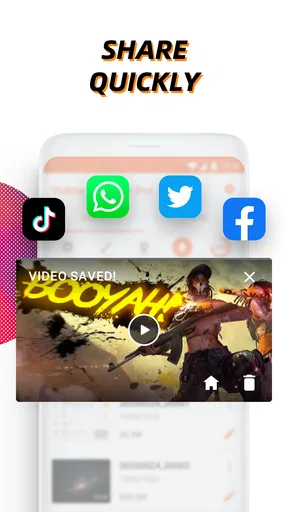
Screen Recorder - Vidma Record provides a wide range of features including high-quality video recording, screen capturing with audio, video editing tools, and the ability to record gameplay. Users can also overlay their face cam, utilize drawing tools during recordings, and easily share videos directly to social media platforms.
Is Screen Recorder - Vidma Record compatible with all Android and iOS devices?
Screen Recorder - Vidma Record is designed to be compatible with most Android and iOS devices. However, for optimal performance, it is recommended to have the latest operating system updates installed. Some features might be limited on older devices due to hardware constraints.
Does Screen Recorder - Vidma Record include any in-app purchases?
Yes, while Screen Recorder - Vidma Record offers a free version with essential features, there are in-app purchases available. These may include premium features such as no watermark, enhanced editing tools, and additional video quality settings. Users can choose to upgrade for a more comprehensive experience.
How easy is it to use Screen Recorder - Vidma Record for beginners?
Screen Recorder - Vidma Record is user-friendly, making it an excellent choice for beginners. The interface is intuitive, with a straightforward setup process. Tutorials and guides are available within the app to assist new users in navigating the features and optimizing their recording experience.
Is my data secure when using Screen Recorder - Vidma Record?
Vidma Record prioritizes user privacy and security. The app does not store personal data on its servers, and all recordings are saved locally on the user's device. It's important to review the app's privacy policy for more detailed information on data handling and security measures.


